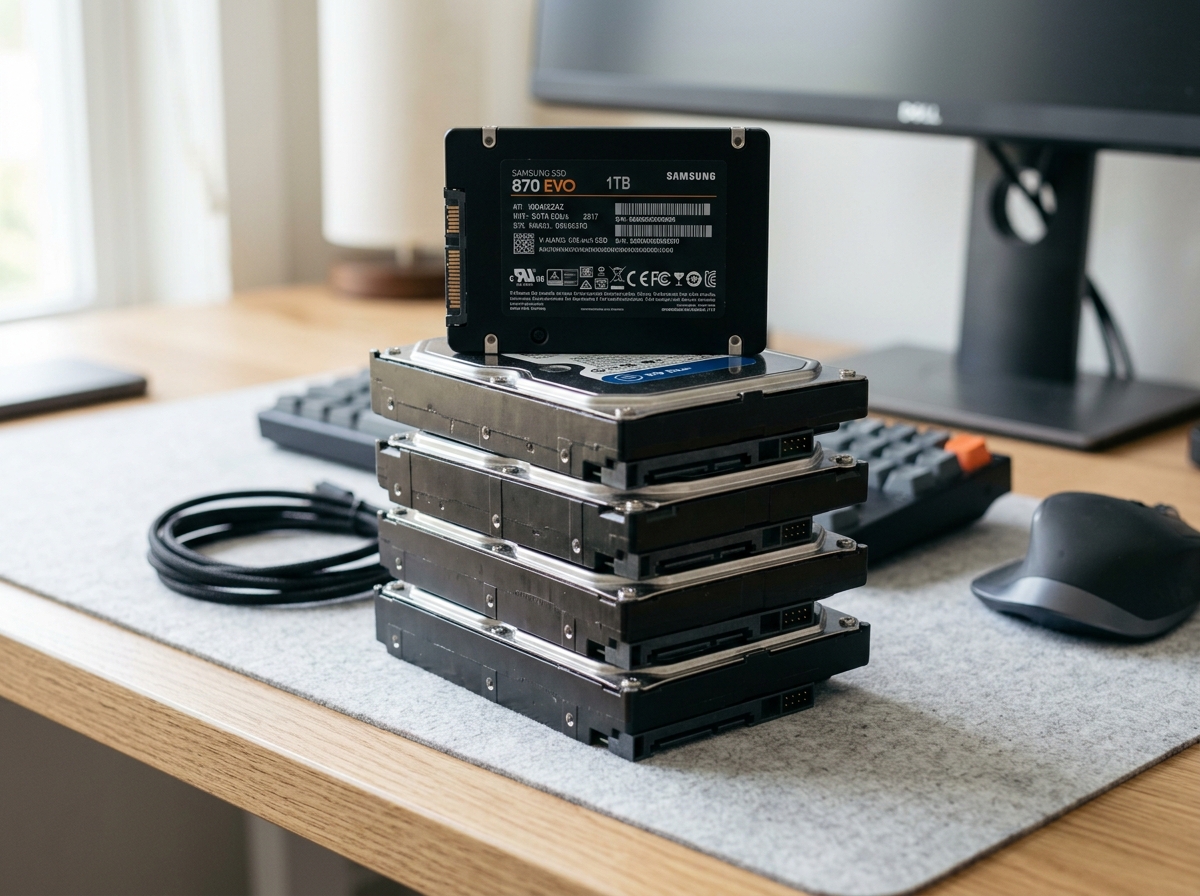
Storage drives do not last forever. Whether you have an older mechanical hard disk (HDD) with spinning platters or an ultra-fast Solid-State Drive (SSD), electronic and mechanical components degrade over time. The key to avoiding catastrophic data loss is recognizing the subtle warning signs before the drive disappears completely from Windows.
- Mechanical clicking, repetitive ticking, or high-pitched grinding noises.
- Sudden extreme slowdowns when opening folders or booting Windows.
- Files mysteriously corrupting or disappearing after saving.
- SSDs switching abruptly to read-only mode or failing to appear in BIOS.
1. Audible Mechanical Noises (The “Click of Death”)
Mechanical hard drives contain read/write heads flying nanometers above magnetic platters rotating at 5,400 to 7,200 RPM. When heads misalign or hit a platter surface, the drive attempts to recalibrate repeatedly, producing an audible rhythmic click or buzz. If you hear this, shut down your PC immediately???running a clicking drive physically scratches away the magnetic data layer forever.
2. Frozen Windows & 100% Disk Usage
If Windows Task Manager frequently shows 100% Active Disk Time while transfer speeds show 0 KB/s, your drive is struggling to read deteriorating sectors. The controller gets caught in retry loops, causing applications to freeze and the cursor to stutter.
Windows will often prompt you to run “Check Disk” (chkdsk /f /r). If your drive has bad physical sectors, chkdsk aggressively rewrites and shifts data across stressed sectors, which can permanently destroy unbacked-up files.
3. SSD Failure: The Silent Shutdown
Unlike mechanical drives, SSDs have no moving parts and will not click. Instead, SSD failure tends to be sudden. As NAND flash memory cells exhaust their program/erase cycles, the SSD controller often locks itself into emergency read-only mode to prevent write corruption. If you can copy files off but cannot save new ones, your SSD is reaching end-of-life.
4. What to Do to Rescue Your Precious Data
Stop using the computer for everyday browsing. Do not install new programs or games onto the failing drive. Bring the drive to our professional data recovery workshop where we use specialized hardware imagers and clean-room diagnostics to safely extract your critical memories and documents.